
Put the assistants you already use to work in the courses you already teach, design, build, audit, improve, or support.

Your assistant has never seen your courses. Morrow changes that.

Connect Canvas or Moodle once. Morrow gives your assistant working knowledge of your courses, so it can audit content, fix accessibility problems, build New Quizzes, and review alignment right alongside you.

Morrow is and always will be free and open source.

  • Plan courses and create approved lessons, activities, discussions, assignments, and modules.
  • Build and review New Quizzes and Item Banks, down to each question and its answer key.
  • Check course items for accessibility problems and fix them, map curriculum, and prepare accreditation evidence.
  • Compare and update the courses you choose, then check each approved change against what your course site saved.
Instructor

Nursing 210 starts in two weeks and I inherited it from someone who left. I need to know how bad the accessibility is before students see it.

Your Assistant Using Morrow

I read all 84 pages, 22 assignments, 11 discussions and the 60 quiz questions. 31 images have no description, 9 tables have no header row, and 6 quiz images are unlabeled. Most of it is on the four lab pages. Your 12 videos still need a person to watch the captions.

Instructor

Start with the lab pages. Show me what you would change before you touch anything.

Your Assistant Using Morrow

Here are the four lab pages beside the rewrite: 14 image descriptions written from what each image actually shows, and the two data tables given proper headers. Your wording and the lab-safety note are untouched.

Instructor

Good. Do those, then keep going through the rest of the course.

Your Assistant Using Morrow

The four lab pages are saved and I checked each one afterward. I am working through the remaining course-content findings now. Your videos, files, and learner-view checks still need a person.
Why Morrow exists

Your assistant has never seen your courses.

You probably already have an assistant or agent. Maybe your institution provides one, or maybe you pay for ChatGPT out of your own pocket. Either way, it can draft, brainstorm, and explain. But it has never seen your courses.

Getting anything from your assistant into your LMS means copying and pasting, downloading files, and pulling reports. The information most relevant to improving student learning outcomes, where your students are struggling, which outcomes need attention, what is actually working, sits siloed behind hard-to-use tools you cannot question in natural language. Bridging the two is still manual work, and it still falls on you.

And whether you ever get a tool that works inside your LMS often depends on whether your institution upgrades their Canvas license, buys another product, signs another agreement, or waits out another procurement cycle.

Morrow exists so you do not have to wait for any of that. It connects the assistant you already use to the course access you already have. No new product to buy, no feature to wait for, no IT ticket, no API key, and no Personal Access Token.

We believe that all educators and faculty who are charged with teaching, designing, developing, auditing, assessing, and supporting courses deserve free and functional tools that work with the access they already have.

Read the philosophy behind Morrow.

Built-in course knowledge

Give your assistant a way to think through course work.

Morrow equips the assistant you choose with working knowledge of your courses: the learning goals, student practice, assessments, and the materials already in place.

Explore the course guidance

Plan from the learning goal. Check what students need to learn, where they practice it, and how an assessment will show it.

See the learner’s route. Review the order of materials, the steps students follow, and the instructions they use to finish the work.

Respect the course you have. Use its existing design and examples when preparing a change, then check what the course actually saved.

Access With Privacy in View

Protect known student identifiers before course records reach your assistant.

Morrow uses the course roster to replace known student names, email addresses, usernames, and school or course IDs in supported records with labels such as Student A1 before they reach your assistant.

Read the Student Privacy Limits

Use your school account.

Sign in to your school account through your learning platform. Choose the courses you want to work with.

Known student identifiers become course labels.

Morrow replaces known student identifiers in supported Morrow records and Canvas records in Muse. Names or files you provide directly to the assistant bypass Morrow.

The label stays with the course.

For those courses, your assistant can refer to Student A1 later. Morrow matches that label back to the student only within the same course.

Morrow gives your assistant the knowledge to work in the courses you already manage.

Choose the Canvas or Moodle courses your school account can open, and your assistant gains working knowledge of them. Blackboard support is in development.

Morrow gives the assistant you choose working knowledge of your courses.

Morrow connects your AI assistant to the courses you select, and gives it the knowledge to do course work there.

You keep your AI assistant.

Keep working in the assistant you know. Ask the ChatGPT desktop app, Claude Desktop, or Claude Code to use Morrow when you need course information.

What You Get Your own assistant, with working knowledge of your courses.

Compare the courses you choose.

Choose the courses, then the pages, assignments, discussions, quizzes, or dates to compare. Your assistant names anything it could not read.

What You Get Compare sections, trace one outcome across a program, or find the same broken table in several courses.

Turn findings into useful work.

Your assistant can use the course information to write a study guide, build a chart, or draft a message. Morrow connects the assistant to your courses.

What You Get A result you can review and use.

Choose. Ask. Review.

Choose the courses, ask for the work, and review the result. Your assistant checks each approved change against the course and tells you when something still needs attention.

  1. 1

    Choose the courses and sections.

    Your assistant can use only courses the connected account can open.

  2. 2

    Ask a clear question.

    Ask which students missed an assignment, where deadlines overlap, or which lessons need clearer image descriptions.

  3. 3

    Review what supports the answer.

    Open the pages, assignments, or discussions that support a finding before you act.

  4. 4

    Approve only the changes you want.

    Compare the current and proposed versions. Afterward, your assistant checks each changed item in the course.

Work with your courses in Muse.

Plan and change Canvas courses in Muse with Morrow. Use Moodle courses already in Muse to review materials and plan lessons.

Explore Morrow

Get started with Morrow.

Download Morrow for Mac or Windows. The setup guide helps you install Morrow Bridge and connect your assistant. Then open a course you teach or manage.

Download Morrow
MacWorks on Macs with Apple silicon and macOS 13 or later
WindowsWorks on Windows 10 and Windows 11

See the Three-Stage Setup, or choose your computer on the Download Page.

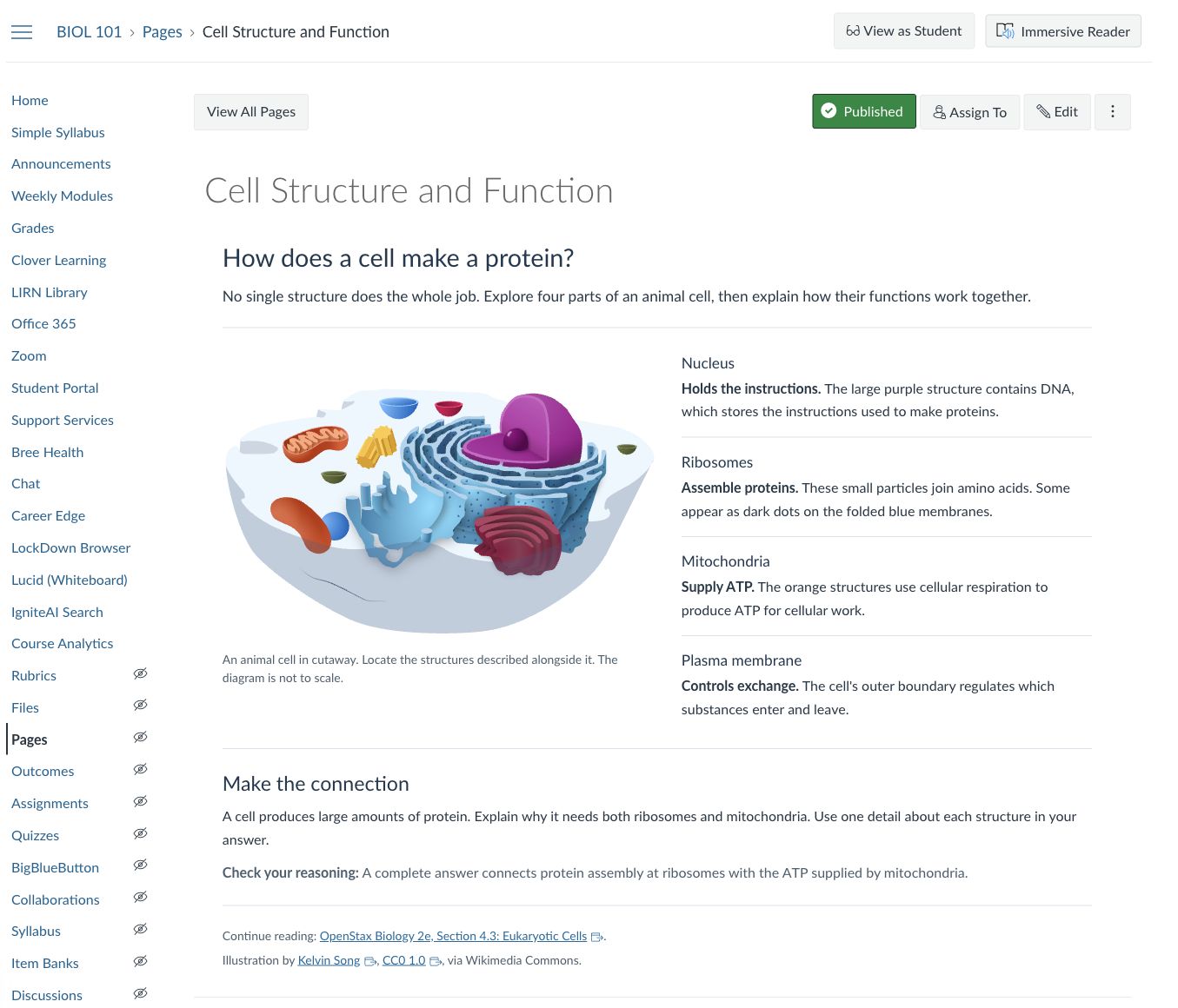
Your assistant can check a course page as Canvas saved it.

Review the page Canvas saved, as your assistant sees it. Captions and the learner view still need a person to check.

A published Canvas page named Cell Structure and Function in the BIOL 101 course. It shows the course menu, a heading, a labeled cell diagram with a description below it, four named cell structures, and a short student task.
A Canvas page. Morrow can read its headings, image descriptions, tables, instructions, and links. It does not show a Morrow change.